What it does
You see your plan and rates, your balance, every invoice and the payment method on file, on one page. Billing does not show what Sellify returned; that is on the Dashboard.
- Your plan and rates: the plan your company is on and the rates that apply to it.
- Billing Details: the outstanding balance, the next billing date and any credits.
- Prepaid balance: what is left of a prepaid amount, if your plan uses a prepaid balance.
- Billing history: every invoice. Each one lists sales and usage, so you can see what you were billed for.
- Payment method: add, change or remove how you pay, by card or by bank.
Where billing sits in Settings
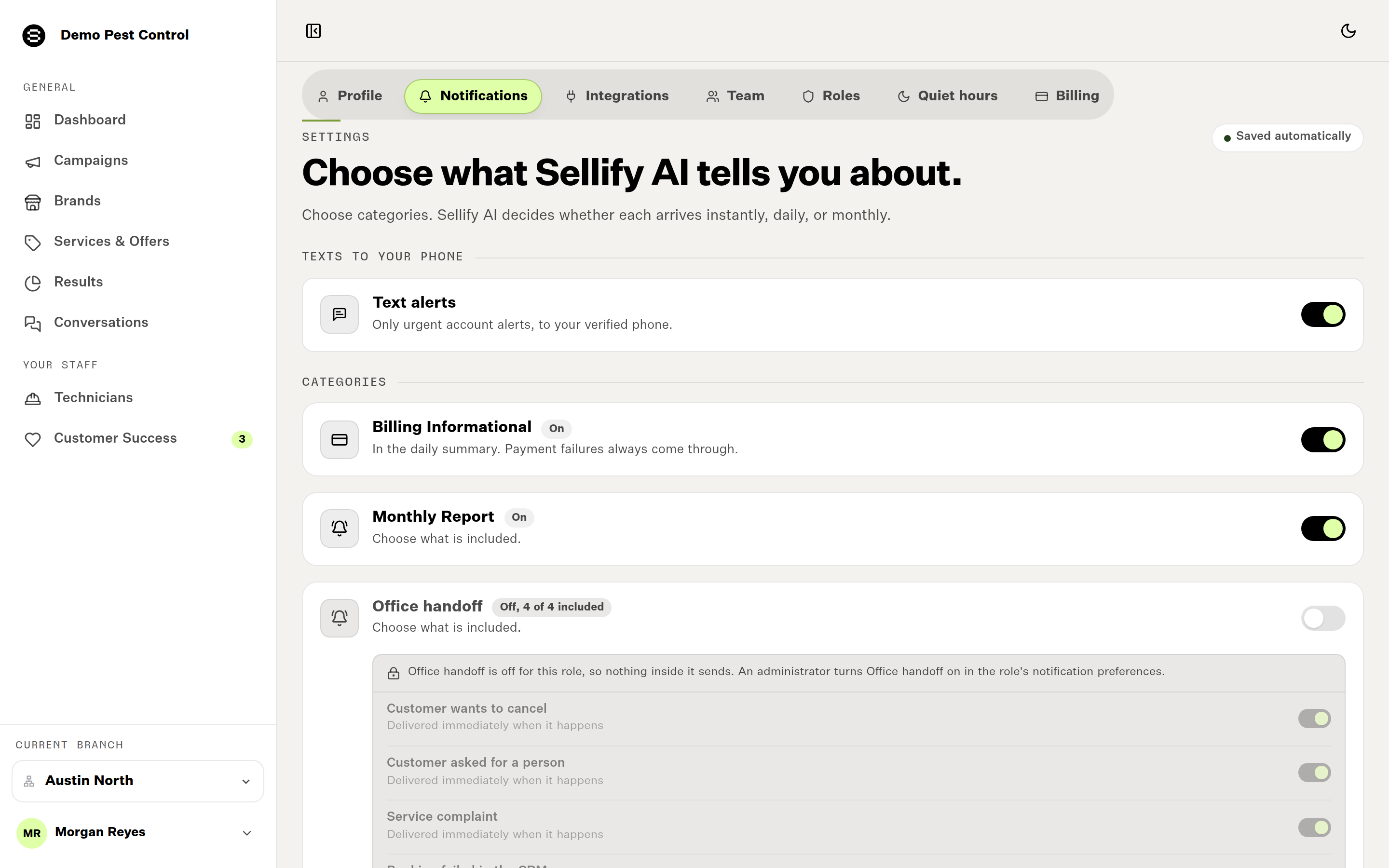
- 1Billing: the tab for billing in Settings, next to Quiet hours.
- 2Billing Informational: in the daily summary. Payment failures still come through.
- 3Text alerts: only urgent account alerts, to your verified phone.
Open it from the menu on your name, then Settings > Billing. The Billing Informational alerts are set on the Notifications page, shown above.
Who uses it
- Owners and admins, to check the plan and pay invoices.
- A billing or bookkeeping person, if you give their role billing access.
- Anyone else only if you choose. Office staff, sales and technicians do not need billing to do their work in Sellify.
You set this in Team and Roles: Settings > Roles lists what each role may do, and billing is one of the permissions. A CSR can work in Conversations and Tasks all day without ever seeing an invoice.
What you control
- Payment method: which card or bank account Sellify charges.
- Who can see billing: the billing permission on each role, in Settings > Roles.
Reading an invoice next to your results
An invoice tells you what you paid. The Dashboard tells you what came back: the value delivered and the value by use case. Reading the two side by side is a quick monthly check. If a line on an invoice is unclear, ask your account manager.
What stays with your team
Deciding who holds the company card, who approves invoices, and who may change the payment method. Sellify shows the information; the approvals are yours.
Related
Team and Roles
Give billing access only to the people who need it.
Dashboard (value delivered)
What Sellify AI returned, by use case.
Pest control software: a small business buyer's checklist
What pest control software a small business needs, what to ask before you buy, and when to add a tool on top of your CRM. A scorecard and four demo myths.
Questions
Where do I see my Sellify invoices?
How can I pay?
Who on my team can see billing?
Where do I see what Sellify AI returned for the money?
Sellify AI does this texting and call answering for pest control companies. See how it works, or book a walkthrough. Already a client? Ask your account manager.
Sources
- Sellify AI product documentation