What it does
You decide who on your team sees and changes each part of Sellify. It does not choose anyone's access: which permissions a person needs is your call.
- Settings > Team lists everyone on your account, grouped as Admins and owners, Office staff, Sales, Technicians and Invite pending, with each person's role, branches and status.
- Settings > Roles lists your roles and the permissions each one has. You can make custom roles.
- Two-factor login is available for your team.
The permissions you hand out
Each permission opens a part of the app:
| Permission (plain words) | What it opens |
|---|---|
| Campaigns | Campaigns and Services & Offers |
| Conversations | Conversations, Customers and opt-outs, Customer Success |
| Branches | Brands and the Technicians area |
| Sales analytics | Results |
| Billing | Settings > Billing |
| Integrations | Settings > Integrations |
| Users | Settings > Team and Roles |
| Settings | Settings > Quiet hours |
The Dashboard, your own Profile and your own Notifications are open to anyone who signs in.
A tour of the Team page
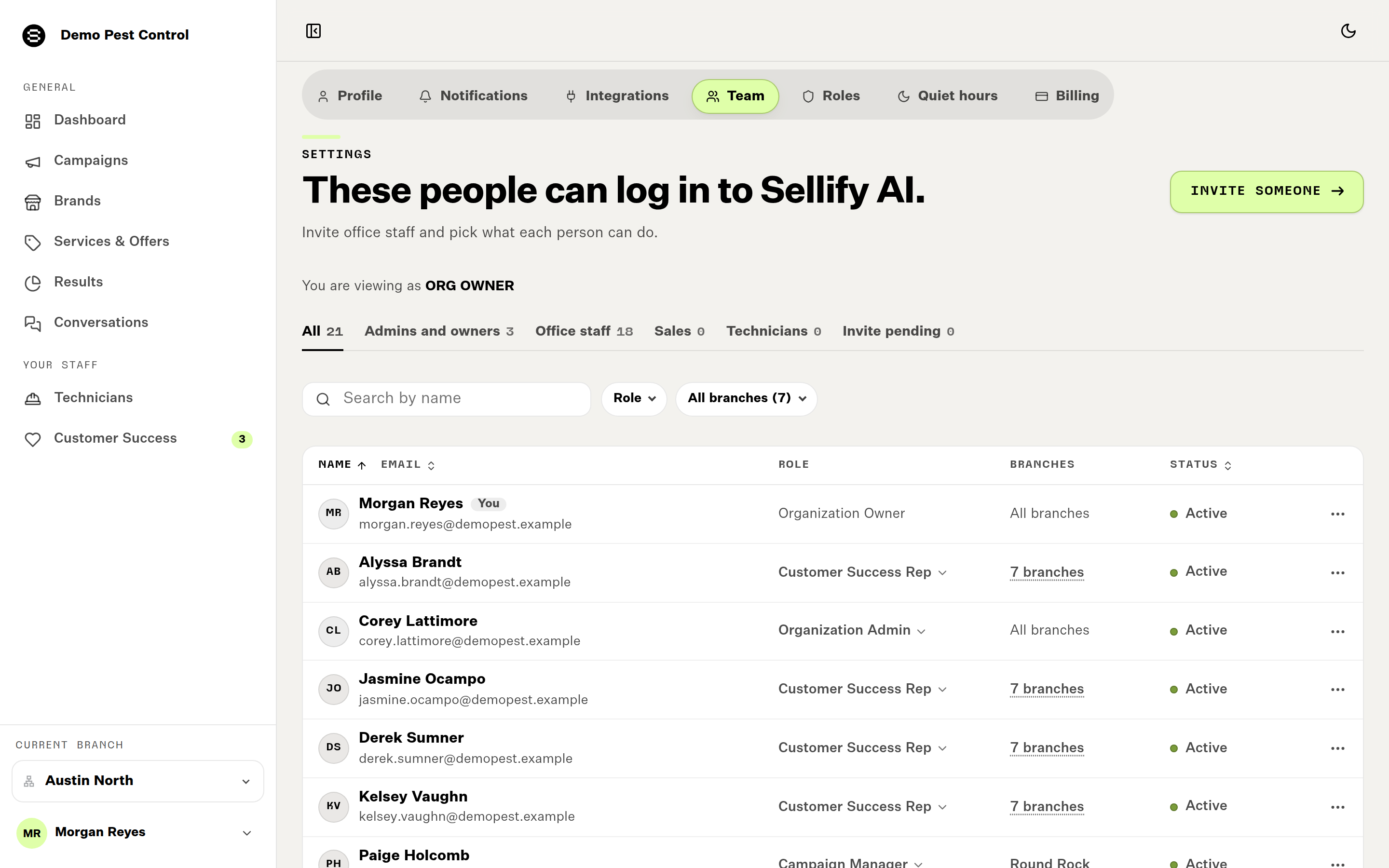
- 1Tabs: All, Admins and owners, Office staff, Sales, Technicians and Invite pending.
- 2Each person with their role, branches and status.
- 3Invite someone.
What good looks like
Aim for every person to have the access their job needs and nothing more, with billing, integrations and user management kept to a small group. That keeps the app simple for the office and limits mistakes when someone changes job or leaves.
Numbers to watch:
- How many people hold admin or owner access. Fewer is safer.
- Invites still pending after a week.
- Accounts of people who left, removed the same day.
What the customer sees
Nothing. Roles decide what your team sees inside Sellify, not what customers receive.
What your office sees
Each person sees only the sidebar items their role allows. A rep without Billing does not see Billing at all, which keeps the app simple for people who do not need it.
What you control
- Roles and permissions, including custom roles.
- Who is invited, and their role.
- Two-factor login.
What stays with your team
Deciding who should see what. A useful rule: give each person the least access their job needs, and review the list when someone changes job or leaves. Who hears about what is set separately in Notifications.
Related
- Hub: Owners
- Pillar: Pest control software: a small business buyer's checklist
- Brands and branches
- Results
- Update: Team settings, redesigned
Questions
Can I make my own roles?
Can a customer service rep work conversations without seeing billing?
Is two-factor login available?
Where do I see who has not accepted an invite yet?
Sellify AI does this texting and call answering for pest control companies. See how it works, or book a walkthrough. Already a client? Ask your account manager.
Sources
- Sellify AI product documentation