Light and dark, side by side
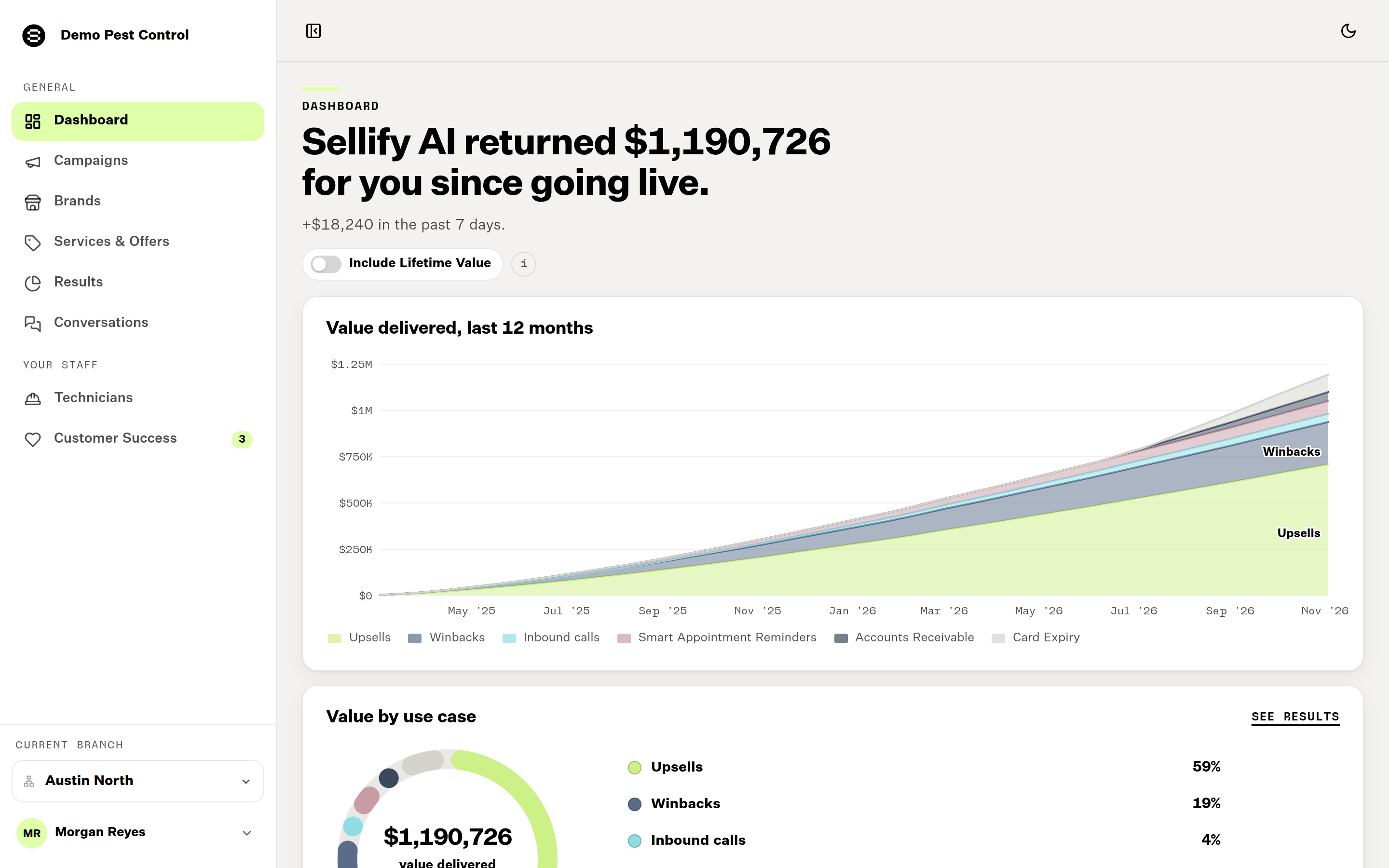
Where things are
- 1The sidebar: Dashboard, Campaigns, Brands, Services & Offers, Results, Conversations and Your staff
- 2The theme switch: light or dark
- 3The menu on your name: your settings live here
What it does
You work with the same features in a new layout, in a light or a dark theme. It does not change what customers receive, and the old look is no longer available.
- A cleaner layout across every page.
- A light and a dark theme, switched at the top right.
- Settings in the menu on your name: Profile, Notifications, Integrations, Team, Roles, Quiet hours and Billing, each shown if your role allows it.
Who uses it
Everyone on your team. The look is the same for owners, office staff and sales; what each person sees in the sidebar still depends on their role in Team and Roles.
What the customer sees
Nothing changes for customers. Their texts and calls are the same.
What your office sees
The same pages and the same labels, in a new layout. A rep who knew where Conversations or Tasks were before will find them in the sidebar.
What you control
The theme. Each person picks light or dark for themselves with the switch at the top right.
What stays with your team
Nothing new to manage. If something looks wrong on a page, tell your account manager.
Related
- Hub: Owners
- Pillar: Pest control software: a small business buyer's checklist
- Dashboard
- The monthly email: what is new in Sellify
- Update: The new look, in light and dark
Questions
Did any feature change with the new look?
How do I switch to dark?
Where did Settings go?
Can I go back to the old look?
Sellify AI does this texting and call answering for pest control companies. See how it works, or book a walkthrough. Already a client? Ask your account manager.
Sources
- Sellify AI product documentation