What it does
You see what each Sellify AI use case did, outcome by outcome, and can open the conversations behind a number. Results reports what happened; it does not tell you why customers chose what they did.
- One view per use case, each with its own outcomes.
- A donut and lines per use case, so you see the mix and the trend.
- Filters by date and branch. Open Results from a campaign to see that campaign alone.
- Evidence lists: the conversations behind each outcome.
- Include Lifetime Value, a switch that shows the long-term value of what was sold or kept.
A tour of the page
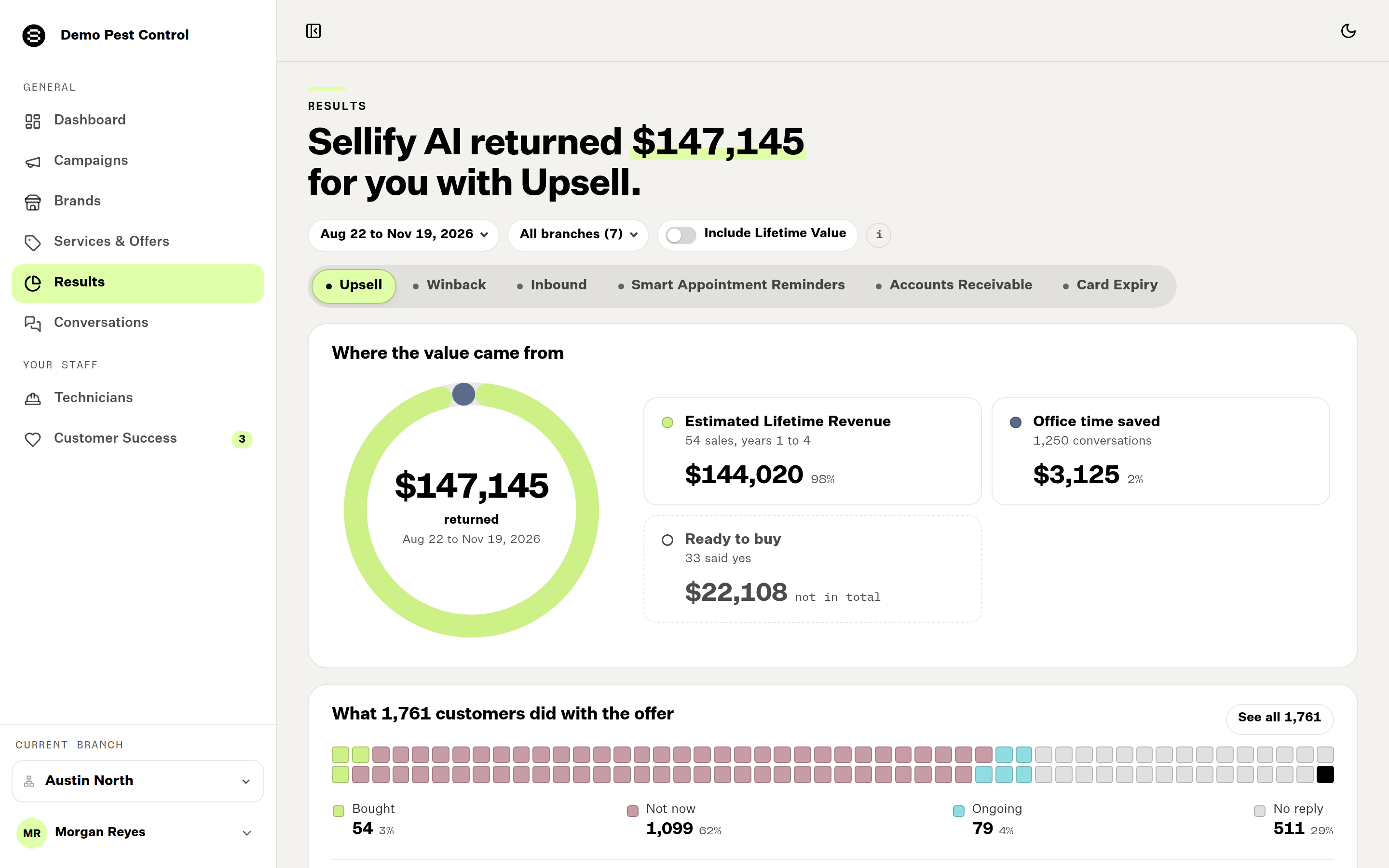
- 1Filter by date and branch, and switch on Include Lifetime Value.
- 2One tab per use case: Upsell, Winback, Inbound, Smart Appointment Reminders, Accounts Receivable and Card Expiry.
- 3Where the value came from, for the tab you picked.
- 4What 1,761 customers did with the offer, with See all 1,761 to open the list.
The outcomes you will see
Each use case uses its own words. These are the labels in the app:
| Use case | Outcomes in Results |
|---|---|
| Smart Appointment Reminders | Confirmed, Rescheduled, Cancel requested, Replied, no change needed |
| Accounts Receivable | Paid, Refused to pay, Disputed the bill, and Promised to pay along the way |
| Winback | Won back, plus what past customers said, such as Price, Moved away, Bad past experience |
| Inbound | New customer signed up, Transferred to your office, Message left for your office |
| Card Expiry | Card updated |
The chart below is example data for a made-up company. It shows how one reminder campaign might split, not anyone's real results.
Smart Appointment Reminders outcomes, example data, Demo Pest Control
Visits| Item | Value | Source |
|---|---|---|
| Confirmed | 620 | Example data, Demo Pest Control |
| Replied, no change needed | 210 | Example data, Demo Pest Control |
| Rescheduled | 140 | Example data, Demo Pest Control |
| Cancel requested | 30 | Example data, Demo Pest Control |
In this example, 30 customers asked to cancel. Each one is a conversation the office can open and a customer worth a call today.
What the customer sees
Nothing from this page. Customers see their own conversation, never Results.
What your office sees
Owners and sales staff use Results to see what each use case did, and open the evidence to read the conversations behind an outcome. Who can open Results follows the permissions you give each role in Team and Roles. Office staff who do not have it still work every conversation in Conversations.
What you control
Which use cases appear depends on the campaigns you run. The filters (date, branch and Include Lifetime Value) are yours to set each time you look.
What stays with your team
Results tells you what happened. Deciding why, and what to change, is the owner's call. Pair it with Sentiment to see how customers feel, and with the Dashboard to see the value side.
Related
Owners
For pest control business owners: where the next customer comes from, who is about to leave, what each part of the business returns, and how to run branches.
How to grow a pest control business
How to grow a pest control business: answer new callers, follow up quotes, sell a second service, win back past customers and hire before the work outruns you.
Dashboard: the value Sellify AI returned
The Sellify Dashboard shows owners what Sellify AI returned since go-live, the value over time and the value by use case, with a link to the Results behind it.
How profitable is a pest control business?
How profitable is a pest control business? Cost study averages for gross margin, labor, marketing and operating margin, plus a worked example to fill in.
Questions
What is the difference between Results and the Dashboard?
What does 'Replied, no change needed' mean for reminders?
Can I compare branches?
What does Include Lifetime Value do?
Sellify AI does this texting and call answering for pest control companies. See how it works, or book a walkthrough. Already a client? Ask your account manager.
Sources
- Sellify AI product documentation