What your office sees
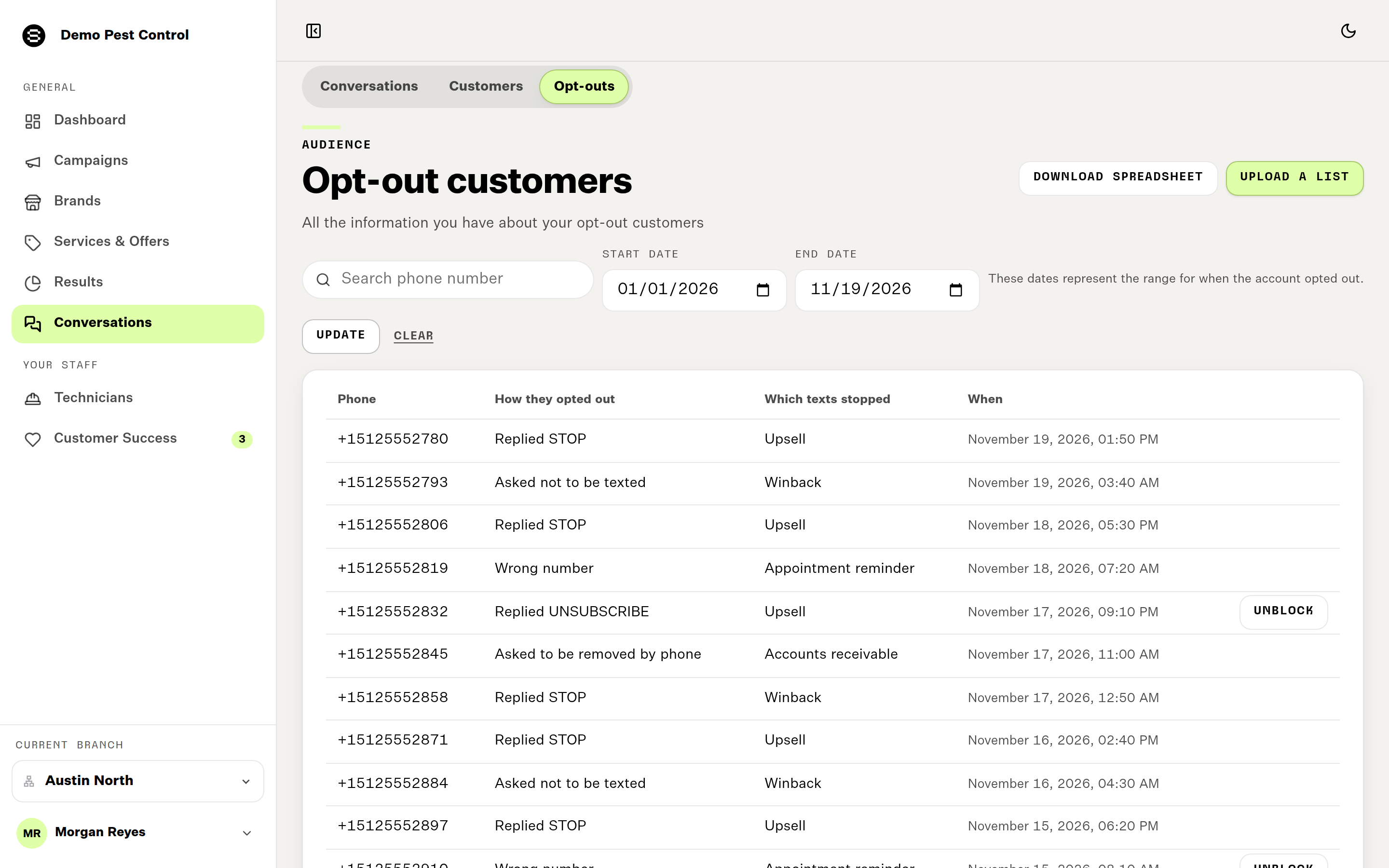
- 1Each opt-out shows the number, how it happened, which use case it stopped and when.
- 2Unblock appears on a blocked number.
The Opt-outs list sits under Conversations, next to Customers. Each row shows how the opt-out happened, which use case it stopped and when. Opt-outs from replies such as STOP are recorded automatically, and you can still add your own do-not-contact list with Upload a list.
Unblocking
Click Unblock on a blocked number. Sellify asks you to confirm: texts from that number will reach Sellify AI again, and the block is removed for every use case of the number. The number stays on the list, so you keep the history.
Unblocking removes the block only. It is your office's call when a number should be unblocked.
Read more on the Customers and opt-outs page. To control when customers hear from you, see Quiet hours; to read or take over a thread, see Conversations.
Part of the Office and customer service hub.
Already a client? Ask your account manager.
Sources
- Sellify AI product documentation