What changed
Screen tour
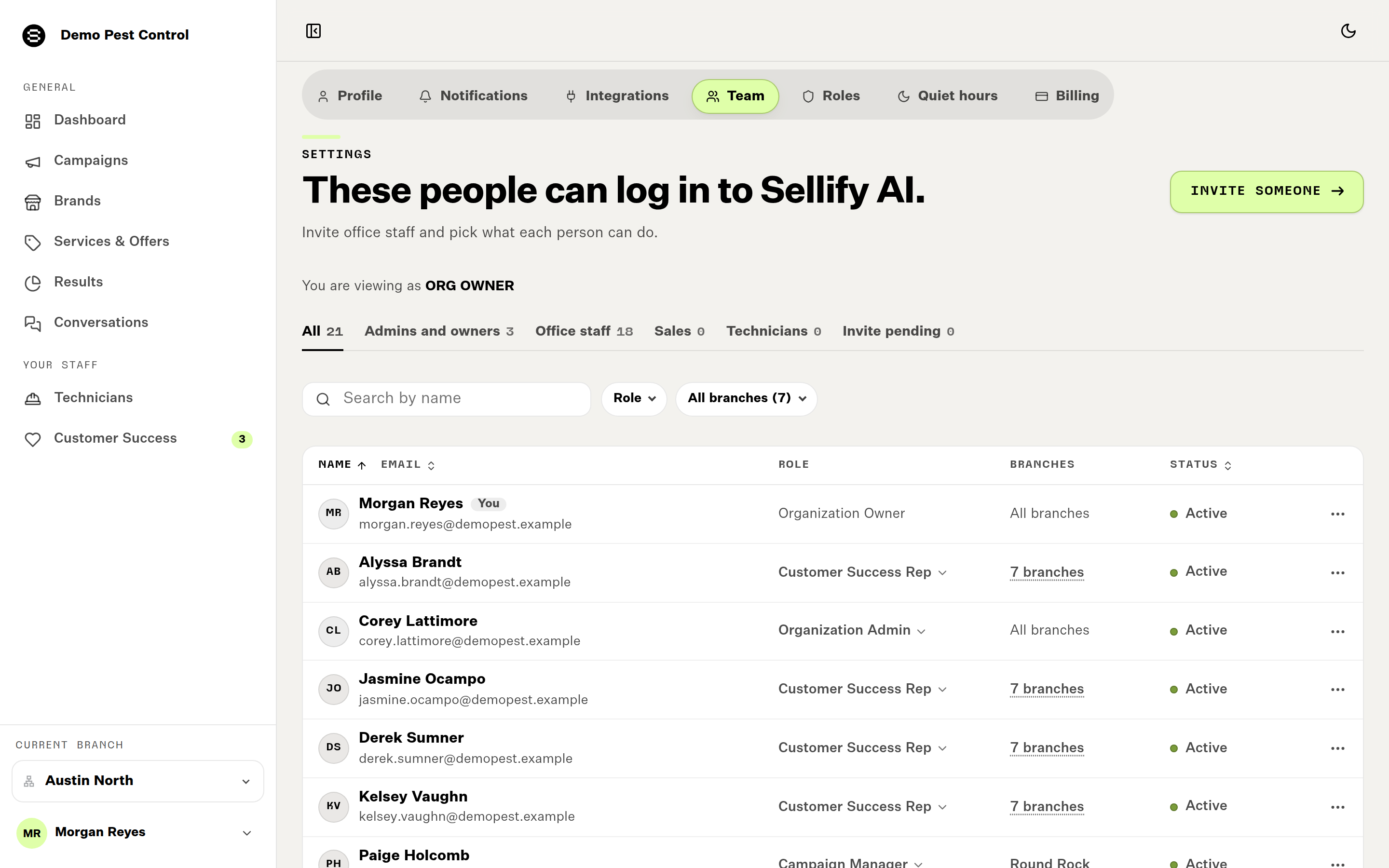
- 1Tabs by role: All, Admins and owners, Office staff, Sales, Technicians and Invite pending.
- 2Status for each person, here Active.
- Tabs by role. All, Admins and owners, Office staff, Sales, Technicians and Invite pending, each with its count.
- A role filter to narrow the list to specific roles.
- A status for each person, so you see at once who has not accepted an invite.
- One menu per person for the actions you already had, such as resending an invite.
The Technicians tab matters now that technicians can use Sellify Tech. What each role may do is still set under Settings > Roles.
Read more on the Team and Roles page. To choose what each person is told about, see Notifications.
Part of the Owners hub.
Already a client? Ask your account manager.
Sources
- Sellify AI product documentation