What it does
You see your day's stops, what to know before each one, and the money you earn from tips and contests. Tips go to your own payout account, not through the company.
The app has four tabs at the bottom:
- Today: your stops in order, with a Morning briefing at the top.
- Map: the same stops on a map.
- Ask: questions about the job, answered from your company's documents.
- Earnings: your tips and any contest prize money.
A day with the app
Example day for a Demo Pest Control technician. Times and stops are invented.
- 7:10
Read the briefing
TechnicianYou open Today and read or play the Morning briefing. One stop has a gate code in its office notes; another has money to collect at the door.
- 8:00
First stop
TechnicianYou tap Go on the next stop. The stop page opens with the customer, the office notes and the last visit.
- 9:45
On my way
TechnicianLeaving stop 2, you tap On my way. The customer gets a text from your company.
- 11:20
A question at the stop
TechnicianYou are not sure what the label says about pets after a treatment. You ask in Ask and read the answer, with the document it came from.
- 15:40
Visit note
TechnicianYou write your visit note, typed or from one of your own templates.
- Evening
Earnings
TechnicianA customer tipped you after the visit. The tip shows under Earnings.
Today and each stop
Today is where the day starts. The Morning briefing sums up the day, and you can read it or play it. Under it you see the next stop with Go, then the rest of your route.
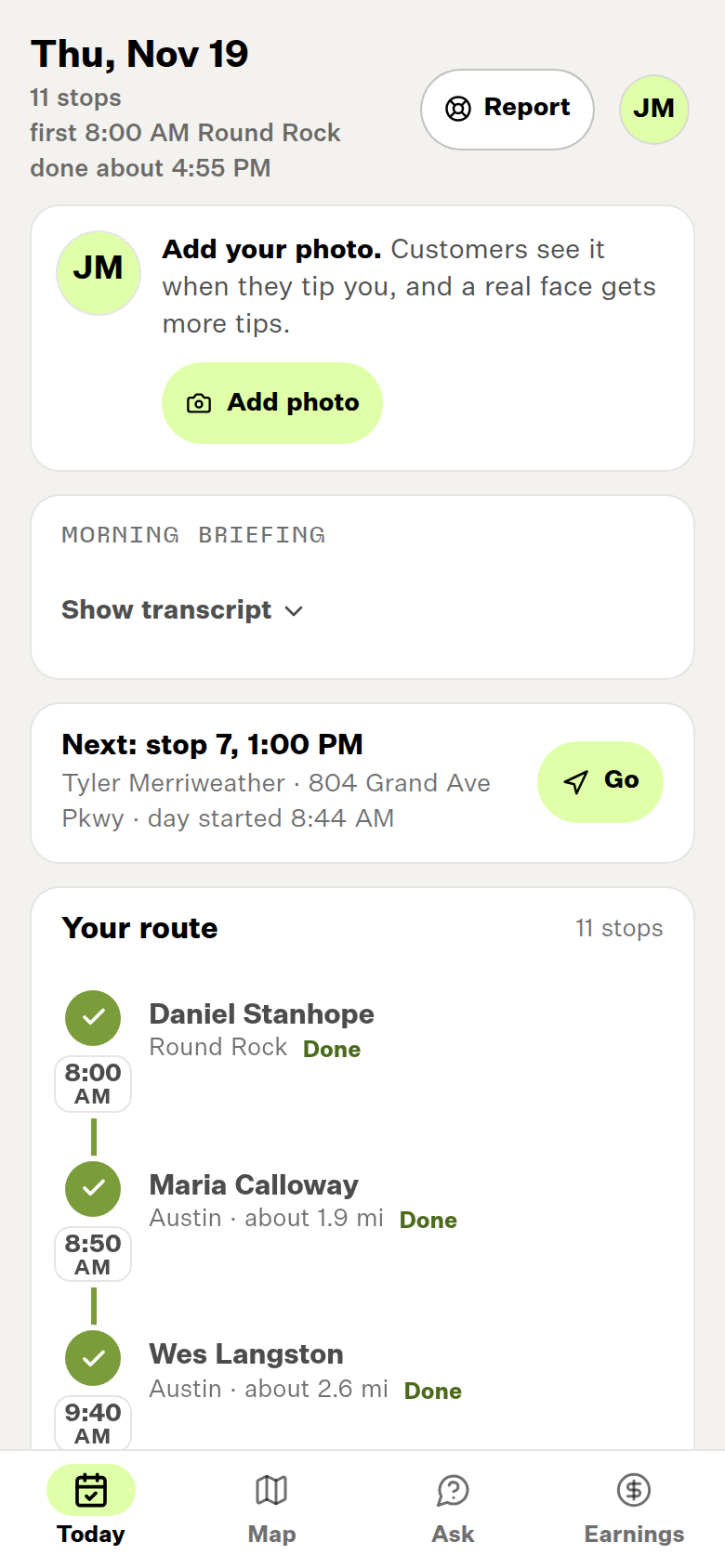
- 1Morning briefing: read or play it before the first stop.
- 2Your next stop, with Go.
- 3Your route: today's stops in order.
- 4Tabs: Today, Map, Ask, Earnings.
Open a stop to see what to know before you knock: money to collect at the door, the office notes (where a gate code usually sits), any schedule conflict and what was done on the last visit. From the stop you can text the customer that you are on your way, call them, or start navigation.
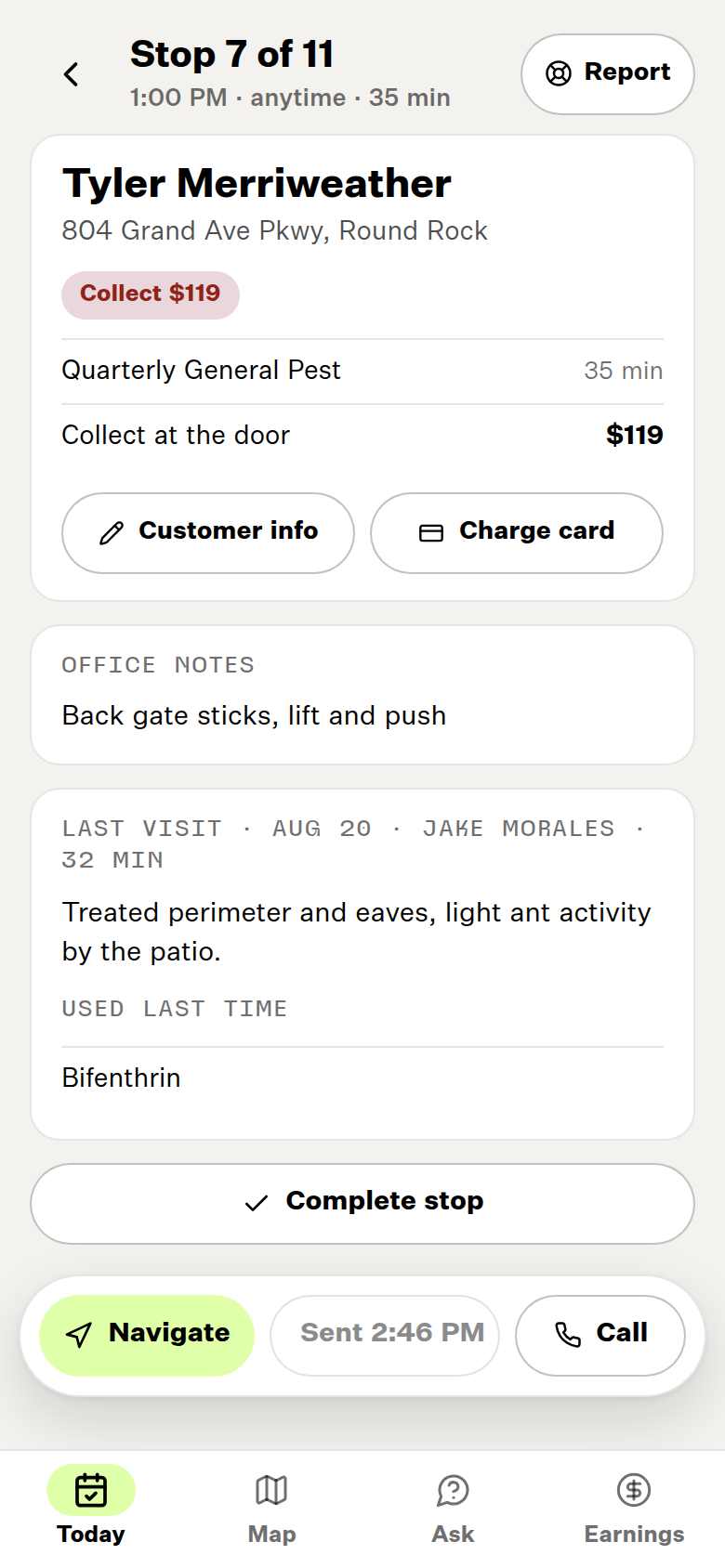
- 1The customer, the address and money to collect at this stop.
- 2Office notes and the last visit.
- 3Navigate, On my way (here already sent) and Call.
When the work is done, write your visit note. You can type it or start from a template you saved in settings, so you do not write the same lines at every house.
Map
Map shows your stops on a map, with the ones you finished checked off. Tap a stop to navigate there or open it.
Ask
Ask is a chat for questions about the job: a product label, a treatment protocol, a safety rule, a company policy. The answers come only from the documents your company uploads, and each answer shows which document it came from. You can type the question or say it.
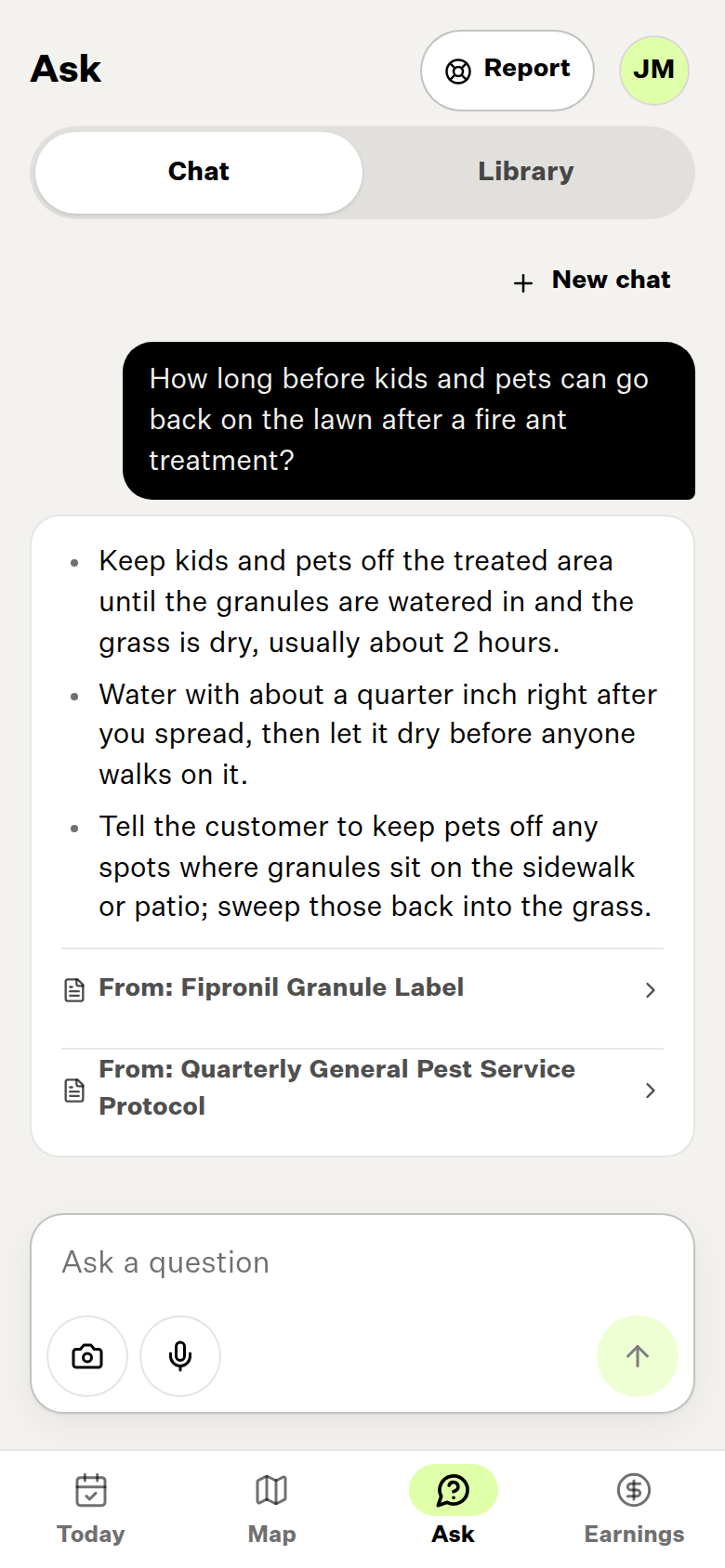
If Ask has no good answer, your company's documents do not cover it yet. Call your office, and tell them which question came up so they can add the document.
Earnings
Earnings shows the tips customers left you and any prize money from contests your office runs. You set up your own payout account in the app. Your tips go to that account, not through the company.
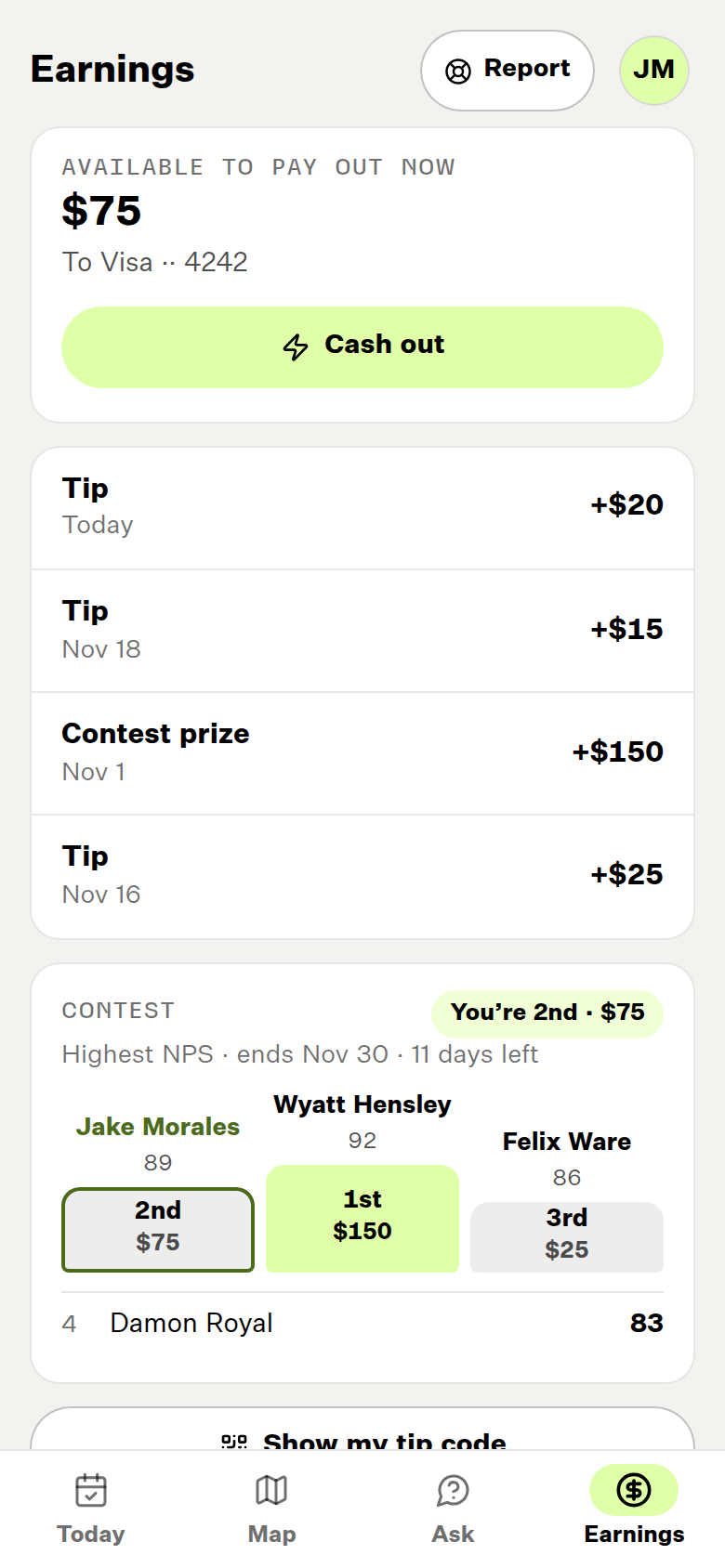
When your office runs a contest, for example on customer ratings or jobs done, you can see where you stand on the same tab.
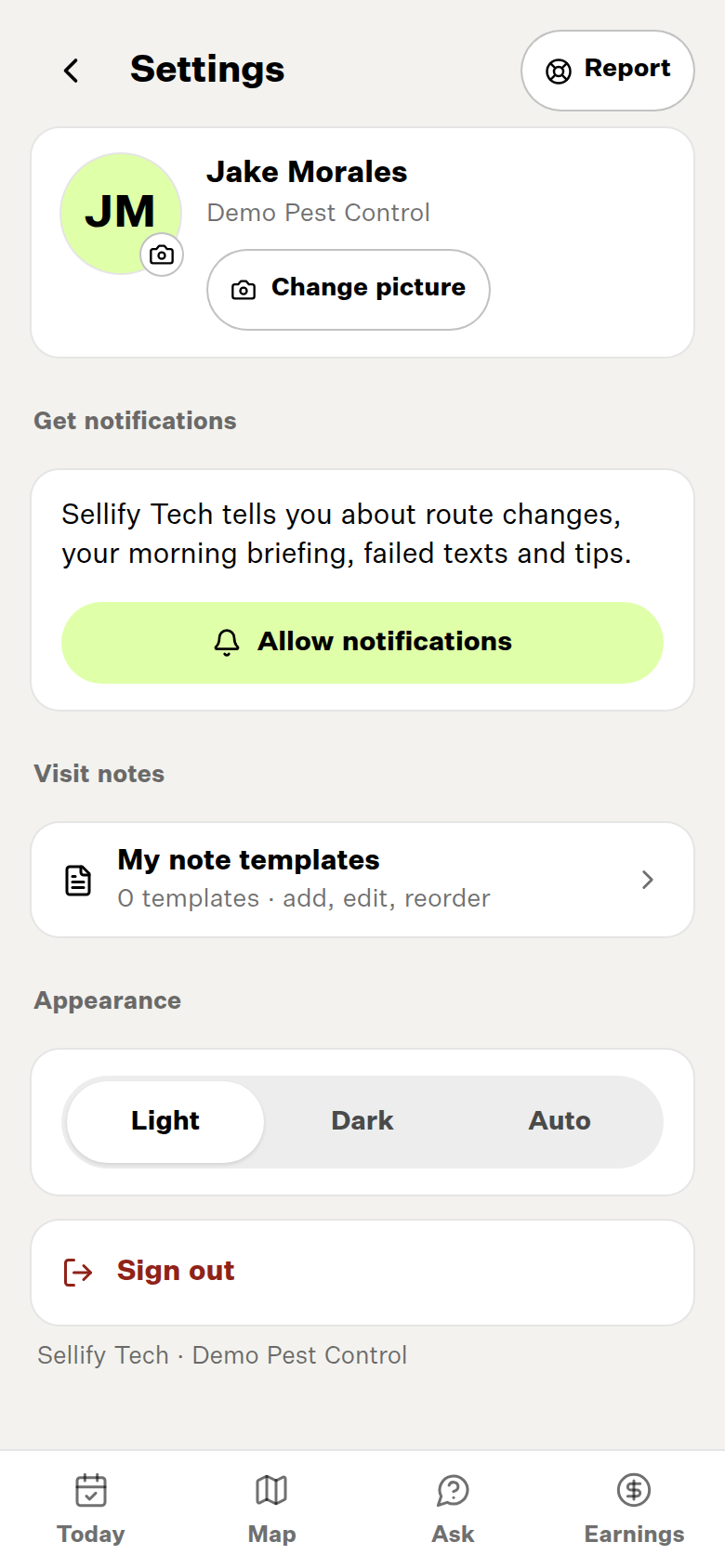
Your settings
You choose:
- Notifications: whether the app may send you notifications.
- Navigation app: which map app opens when you tap Navigate.
- Note templates: your own templates for visit notes.
- Appearance: light, dark or automatic.
What stays with you and your office
Your judgment at the stop stays yours: what to treat, what to tell the customer, when to call the office. Your schedule, your pay plan and your tip policy stay with your company. If something in the app looks wrong, such as a note that does not match the stop, tell your office.
Related
Technicians hub
For technicians and the owners who keep them: guides on training, retention and tips, plus what the Sellify Tech pest control technician app shows on a phone.
Sellify Tech: the owner's view
Sellify Tech puts the day's route, a morning briefing, what to know before each stop, answers from your documents, tips and contests on each technician's phone.
Pest control technician training: a first 30 days checklist
A day-by-day plan for a new pest control technician's first 30 days: ride-alongs, products and labels, customer care, first solo routes and a 30-day review.
Tipping pest control technicians: how to offer it fairly
Should customers tip pest control technicians? How to offer tips without pushing customers, keep it fair across routes, and make sure the money reaches techs.
Questions
How do I get Sellify Tech?
Where do Ask's answers come from?
Do my tips go through the company?
Can I change how the app looks or which map app opens?
Sources
- Sellify AI product documentation