What it does
Your technicians see the day's stops, what to know before each one, answers from your documents, and their tips and prize money, on their own phone. Tips go to each technician's own payout account, not through your company.
- Today: the day's stops in order, a Morning briefing the technician can read or play, and what each stop needs.
- Map: the day's stops on a map.
- Ask: a chat that answers how-to questions from the documents your office adds in Knowledge, by text or voice.
- Earnings: tips and payouts, plus contest standings.
Each stop shows what a technician should know before knocking: flags such as money to collect, plus any Schedule conflict, the Office notes (where a gate code usually sits) and the Last visit.
A tour of the phone screens
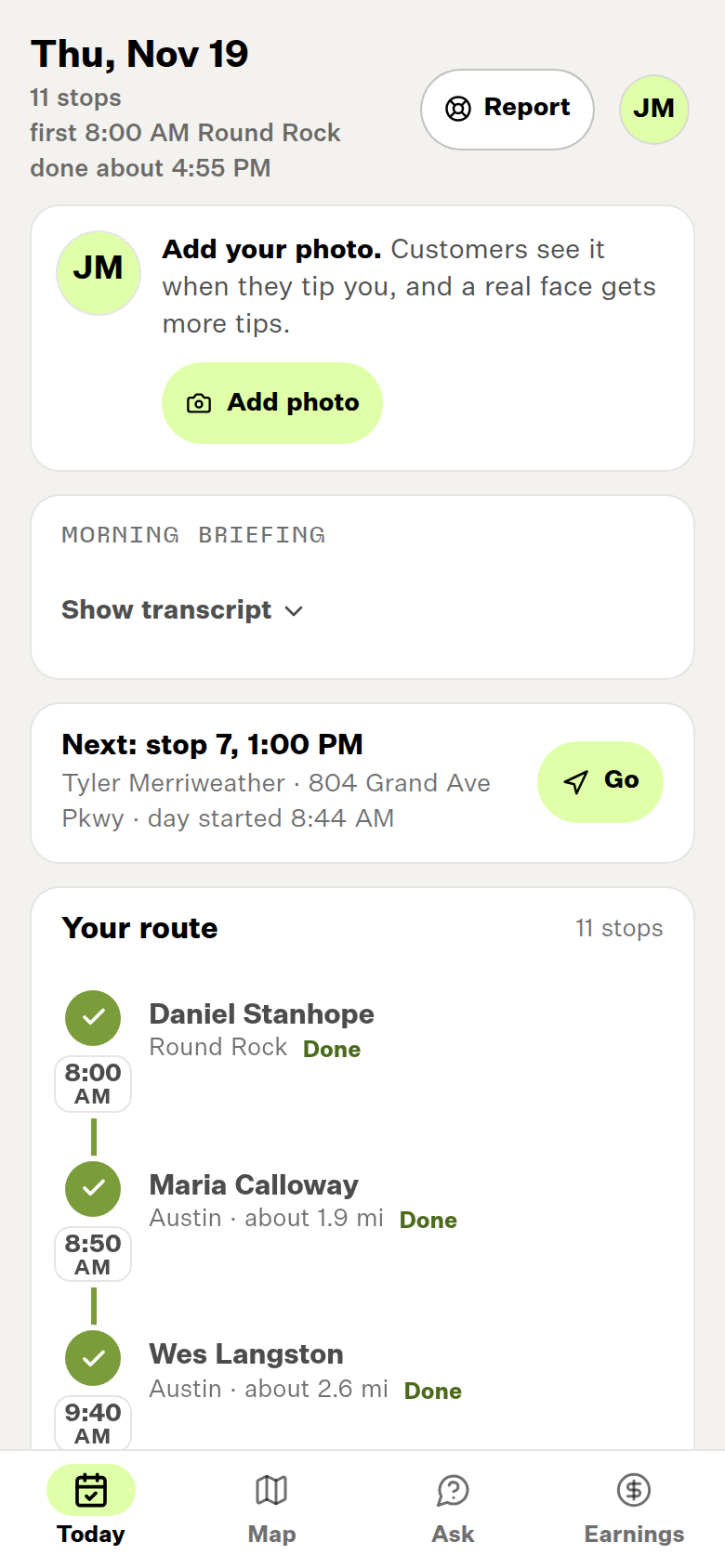
- 1Morning briefing: a summary of the day to read or play before the first stop.
- 2The next stop, with Go to start the drive.
- 3Your route: today's stops in order.
- 4Tabs: Today, Map, Ask, Earnings.
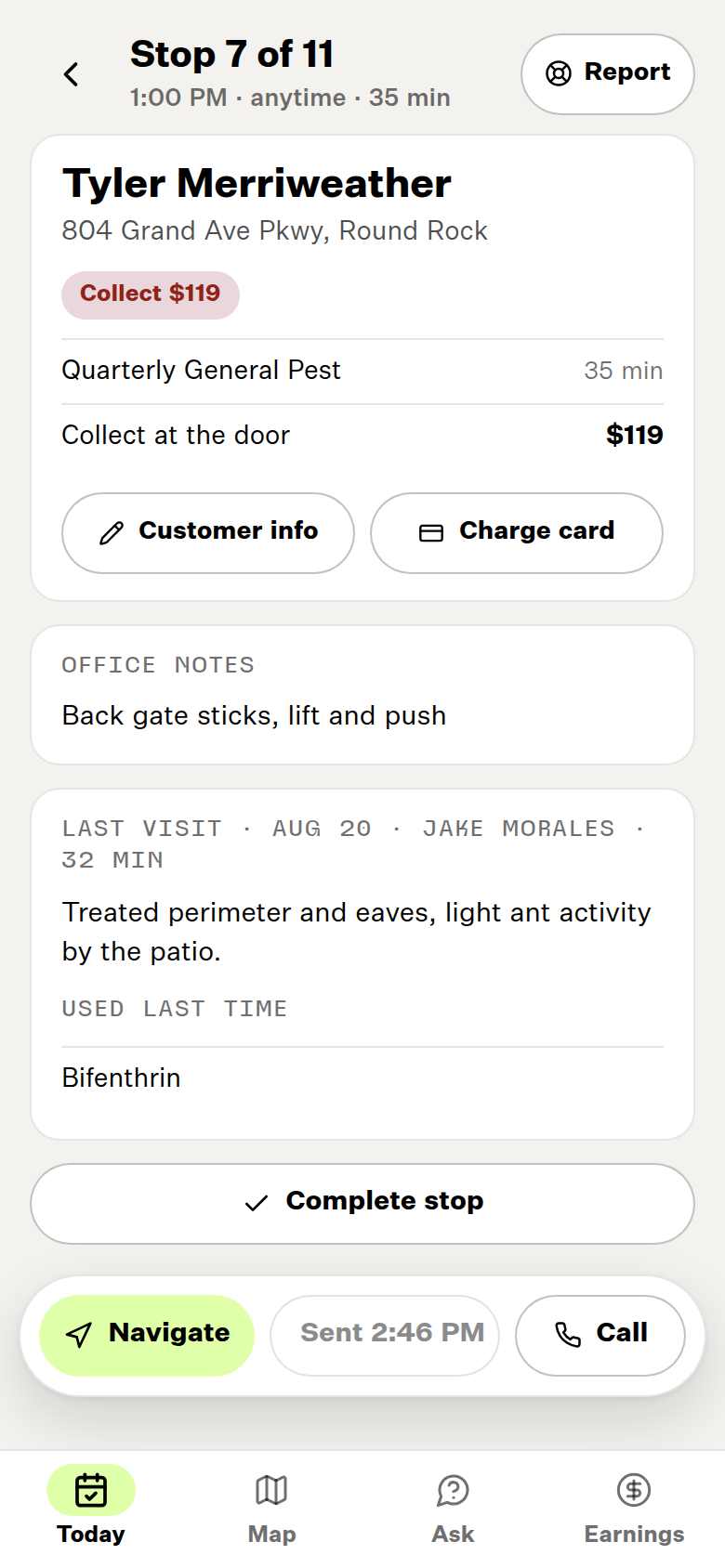
- 1The customer, the address and Collect at the door for this stop.
- 2Charge card: charge the card on file for the balance due, where your CRM supports it.
- 3Office notes and the Last visit.
- 4Navigate, On my way (here already sent) and Call.
The path of one stop
- Before the first stop
Morning briefing
TechnicianThe technician opens Today and reads or plays the briefing. One stop has a gate code in its office notes; another has money to collect at the door.
- Leaving the last stop
On my way
TechnicianOne tap texts the customer that the technician is on the way.
- On the way
Same thread as the reminder
CustomerThe customer gets the text in the same thread as the visit reminder.
- At the door
Read the customer's texts
TechnicianThe stop shows the customer's texts and notes, so the request to treat the garage is not missed.
- After the service
Collect and write notes
TechnicianThe technician can use Charge card to charge the card on file for the balance due, where your CRM supports it. Then one visit note, typed, dictated or from a template, which Sellify splits into a Customer note and an Office note.
- Same day
Office sees the route
OfficeIn Technicians > Today, the office sees stops done and any problems on the route.
What the customer sees
The 'on my way' text and the visit texts arrive in the same thread as the visit reminder. The customer does not install anything.
What your office sees
The Technicians area in the Sellify app: Team (who is invited and who uses the app) and Today (every route, stops done and Problems on routes). See Technicians: Team and Today. Until you invite your technicians, Today, Contests and Tips show what Sellify Tech offers.
What you control
- Who gets the app: the office invites each technician by email from Technicians > Team.
- What Ask can answer from: the documents you upload in Knowledge.
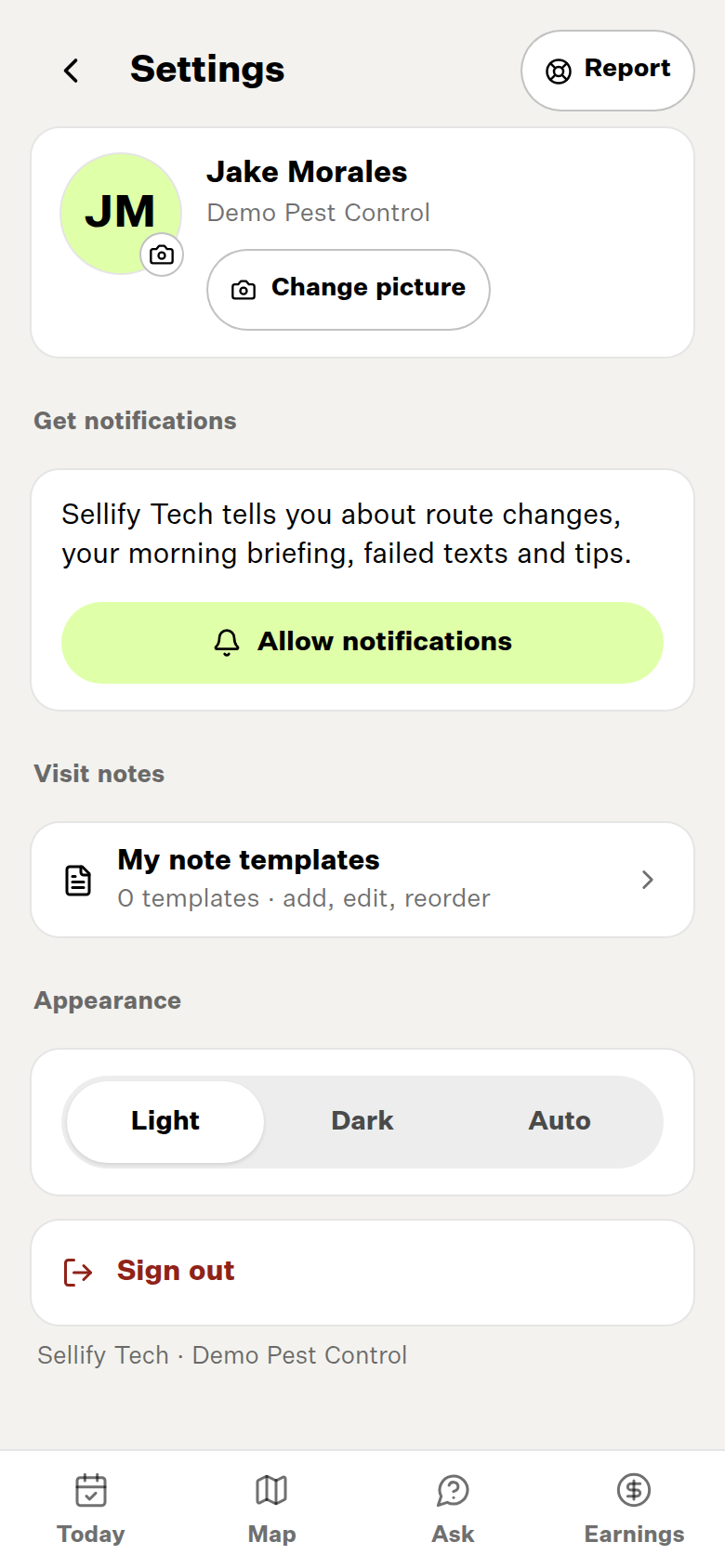
- Each technician's own settings: Get notifications, Navigation app, My note templates, Appearance.
What stays with your team
Scheduling, pricing and every judgment call at the stop stay with your technicians and your office. Sellify Tech puts the information in one place on the phone.
Related
- Technicians hub
- Sellify Tech for technicians: what the app shows you
- Tips for technicians and Contests: what shows up in Earnings
- Pest control technician retention: 7 habits that keep techs
- Pest control technician training: a first 30 days checklist
- Update: Sellify Tech, the technician app
Questions
How does a technician get Sellify Tech?
Where does the technician list come from?
Can technicians see the customer's texts?
Can a technician take a payment at the stop?
What can each technician change in the app?
Sellify AI does this texting and call answering for pest control companies. See how it works, or book a walkthrough. Already a client? Ask your account manager.
Sources
- Sellify AI product documentation