NewHow it works · Technicians

Technicians Team and Today: every route live for the office

The Technicians area gives your office a live view of the field. Today shows every route as it happens: where each technician is, which stops are done, who is running late and which stops have a problem. Team lists your technicians from your CRM and lets you invite them by email to the Sellify Tech phone app.

Contents
  1. What it does
  2. Where things are on Today
  3. Before and after: a morning in dispatch
  4. What the technician sees
  5. What the customer sees
  6. What you control
  7. What stays with your team
  8. Related
  9. Questions
  10. Sources

What it does

Your office sees each route as it happens and invites technicians to the app. It does not reroute anyone or change the schedule; dispatch decisions and the schedule in your CRM stay with your team.

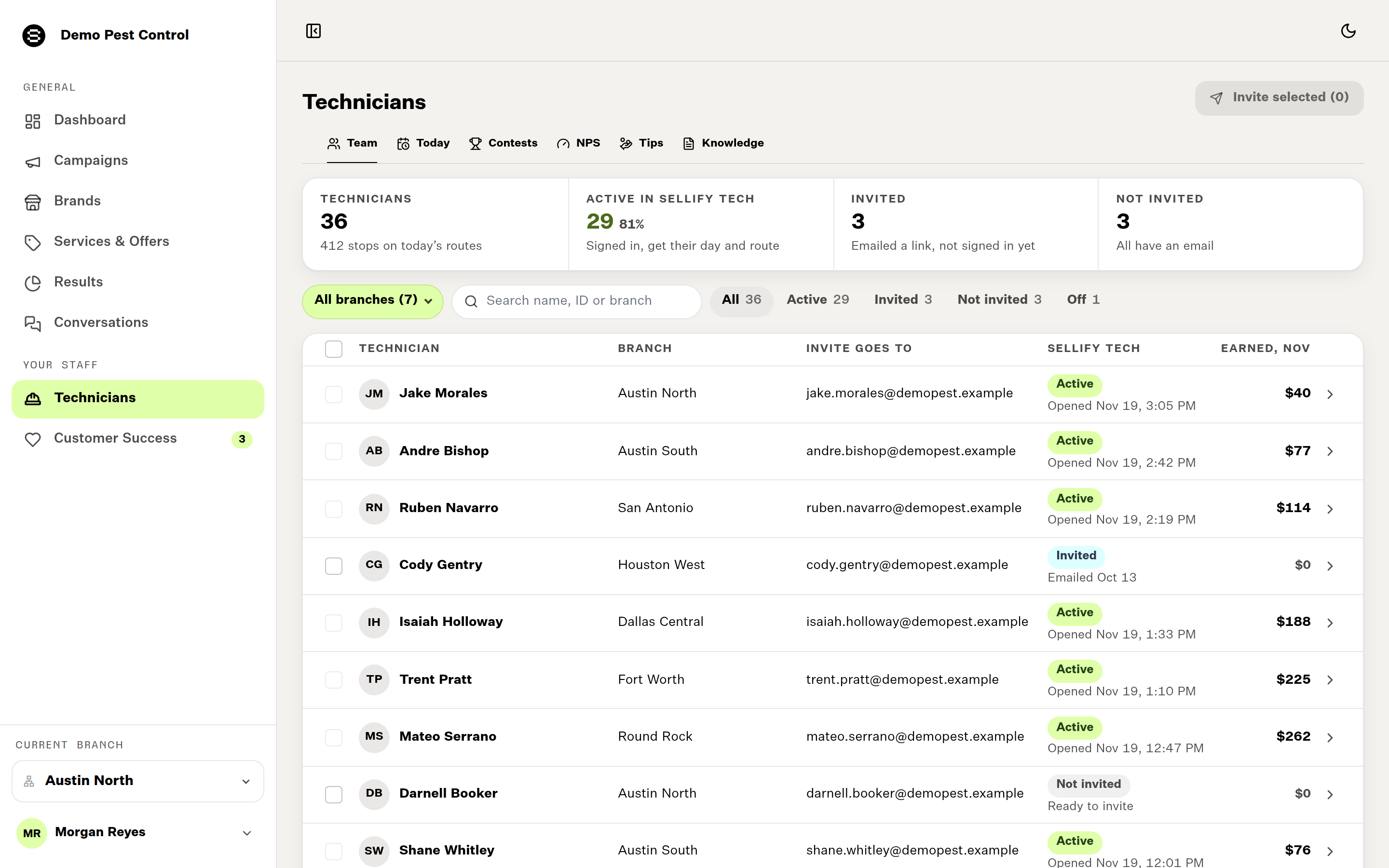
  • Technicians > Team: every technician from your CRM, with branch, app status and usage. Invite technicians to Sellify Tech by email from here.
  • Technicians > Today: routes by branch and by technician, stops done, and Problems on routes: notes in your CRM that contradict today's schedule. The technician sees the same warning on the stop.
  • One click to act: Call, then Handled.

The other tabs in the same area are NPS, Tips, Contests and Knowledge.

Where things are on Today
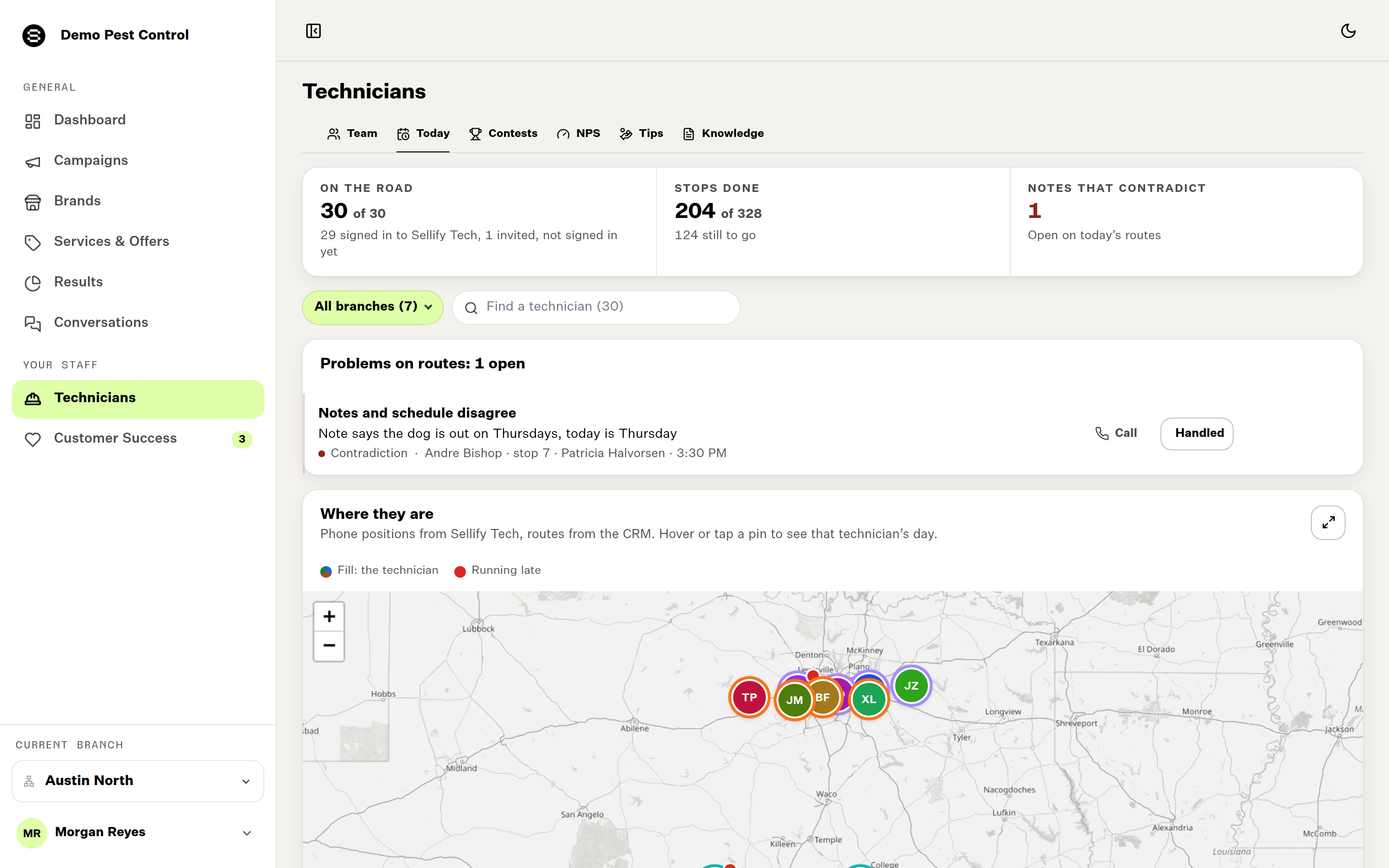
Screen tour
app.sellifyai.com
Technicians Today in Sellify for Demo Pest Control: technicians on the road, stops done, Problems on routes with Call and Handled, and a map of where they are123
  1. 1Totals for the day: technicians on the road and stops done.
  2. 2Problems on routes: notes that contradict today's schedule, with Call and Handled.
  3. 3Where they are: each technician on the map, and who is running late.
Technicians Today in Sellify for Demo Pest Control: technicians on the road, stops done, Problems on routes with Call and Handled, and a map of where they are

Before and after: a morning in dispatch
Before and after
By handA dispatcher who knows every route calls a late technician and sorts it out.
In SellifyThat still works. Today shows which stop is late, so the dispatcher knows whom to call.
By handA customer calls to ask where the tech is. Someone calls the tech, who is driving.
In SellifyThe office opens Today and sees where the technician is and which stops are done.
By handA note in the CRM says 'Fridays only' on a Monday stop. Nobody sees it until the tech is at the door.
In SellifyThe stop shows under Problems on routes on Today, and the technician sees the same warning on the stop.
By handA gate code sits in an old office note.
In SellifyOffice notes and the last visit show on the stop in Sellify Tech.
By handTwo people in the office call the same tech about the same problem.
In SellifyOne person handles it and clicks Handled, so it leaves the open list for everyone.
By handWho uses which tool is guesswork.
In SellifyTeam shows who is invited and who is active in Sellify Tech.
app.sellifyai.com
Technicians Team in Sellify for Demo Pest Control: each technician with branch, the email the invite goes to, Sellify Tech status and what each earned this month

What the technician sees

The same warnings on the stop, on their phone, in Sellify Tech: Today, Map, Ask and Earnings.

What the customer sees

Nothing new in the office view itself. When the office calls a customer from Today, it is a normal call from your team.

What you control

  • Who can open it: the area needs the Manage branches permission. See Team and Roles.
  • Who is invited: you choose which technicians to invite from Team.
  • What counts as handled: your office decides when to click Handled.

What stays with your team

Dispatch decisions, reroutes and calls to customers stay with your office. The route and the schedule stay in your CRM. The Technicians area shows what is happening so a person can decide.

Role hub

Technicians hub

For technicians and the owners who keep them: guides on training, retention and tips, plus what the Sellify Tech pest control technician app shows on a phone.

Read
Guide · Technicians

Pest control technician retention: 7 habits that keep techs

Too few technicians holds back many pest control companies. Seven retention habits that keep good techs: a clear day, fair feedback, recognition, visible pay.

Read
Guide · Technicians

Pest control technician training: a first 30 days checklist

A day-by-day plan for a new pest control technician's first 30 days: ride-alongs, products and labels, customer care, first solo routes and a 30-day review.

Read
Product update

Update: Sellify Tech, the technician app

Sellify Tech gives each technician today's route, a map, what to know before every stop and answers from your documents, plus a live office view of routes.

Nov 18, 2026Read

Questions

Where does the technician list come from?
From your CRM. Technicians > Team lists them with their branch, the email their invite goes to, and whether they are invited and active in Sellify Tech.
Who in the office can open the Technicians area?
People whose role has the Manage branches permission. You set roles in Settings.
What does the office see before any technician is invited?
Today, Contests and Tips show what Sellify Tech offers, so you can decide who to invite first. Knowledge is open from the start, so you can upload your documents before anyone is invited. Team lists your technicians from the start.
What happens when the office clicks Handled on a problem?
It leaves the list of open problems for everyone in the office.

Sellify AI does this texting and call answering for pest control companies. See how it works, or book a walkthrough. Already a client? Ask your account manager.

Sources

  1. Sellify AI product documentation